

My settings
These settings only affect how you use VOW, they won't affect the rest of your team.
Security
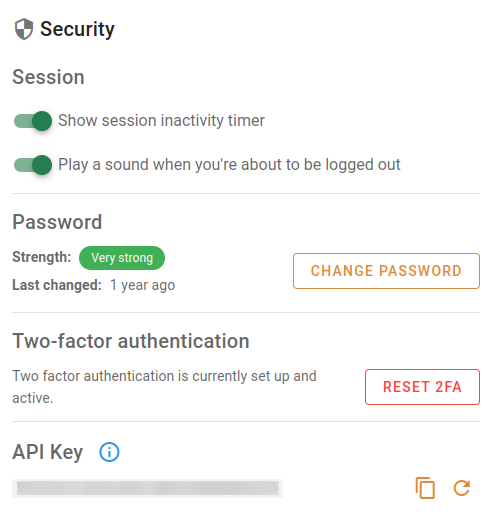
| Setting | Section | Notes |
|---|---|---|
| Show session inactivity timer | Session | If this switch is turned on, the system will display a countdown timer in the top right of the application. It tells you how long you have until the system will automatically log you out because you haven't interacted with it. |
| Play a sound when you're about to be logged out | Session | If this switch is turned on, the system will play a sound when it is about to log you out because you haven't interacted with it in a while. Click play below to hear the sound. |
| Strength | Password | This is an indicator of your password strength. |
| Last changed | Password | This tells you how long it has been since you last changed your password. |
| Change password | Password | Click the Change password button to open a popup that will allow you to change your password.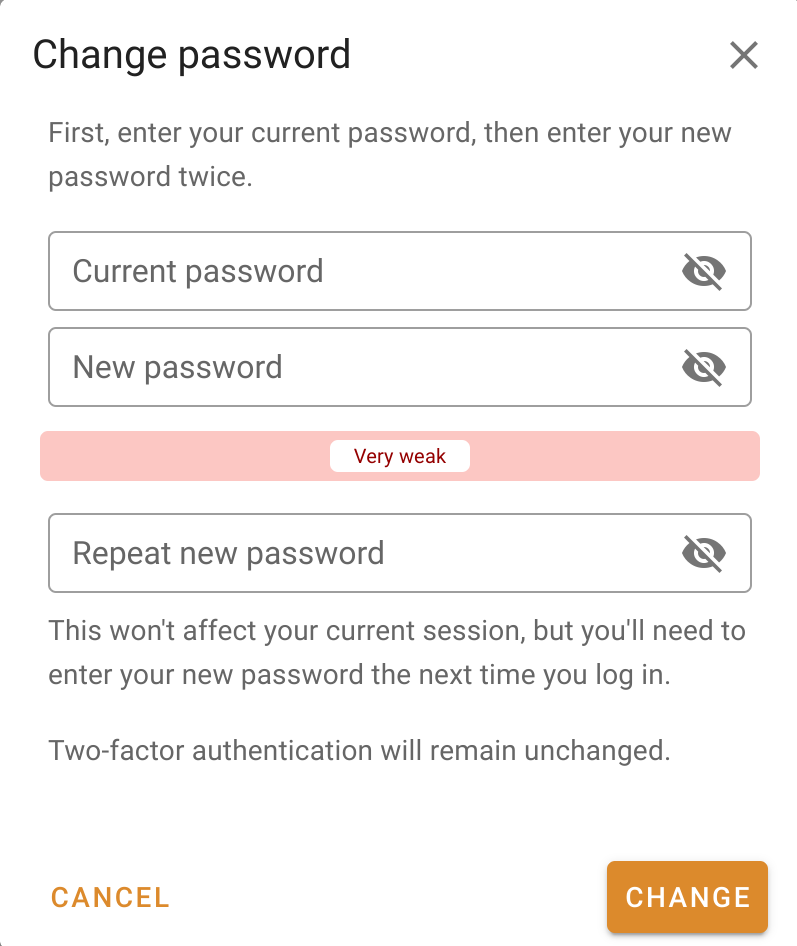 |
| Reset 2FA | Two-factor authentication | Click this button to clear your two-factor authentication information. You'll have to scan a new QR code next time you log in. |
Info | API key | Click this to learn more about how the VOW API key is used in conjunction with the helper to let you edit your documents. See this page for more information. |
Copy | API key | Click this button to copy your API key to the clipboard. You can then paste it into the helper. |
Refresh | API key | Click this button to regenerate your API key. You will have to copy your new key into the helper so that the server will recognised its requests. |
Emails
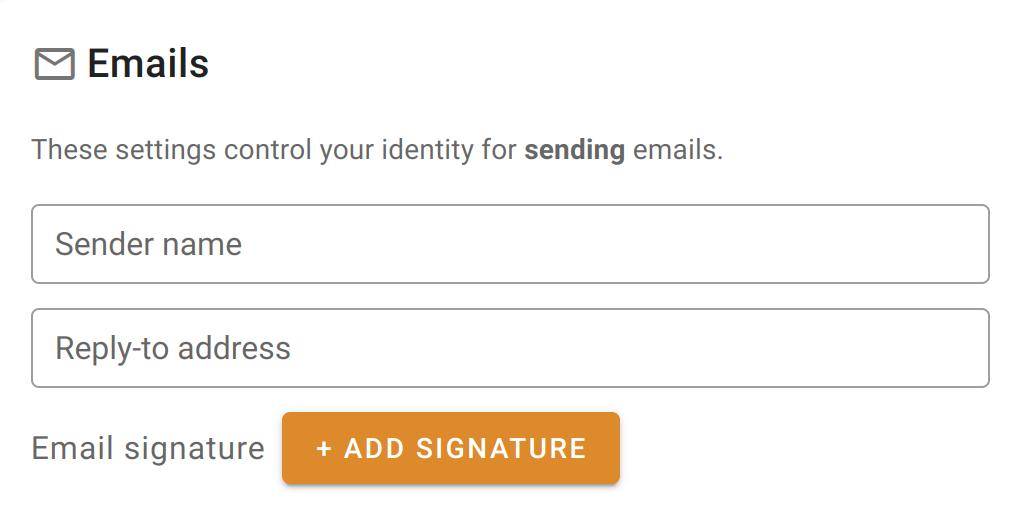
| Setting | Notes |
|---|---|
| Sender name | Enter the name you want to use as your sender name in emails generated by the system on your behalf. |
| Reply-to address | Enter the email address that you want have as the reply-to address in the emails generated by the system on your behalf. |
| Email signature | Click the button to open a popup that will allow you to edit the signature to be appended to emails sent by the system on your behalf.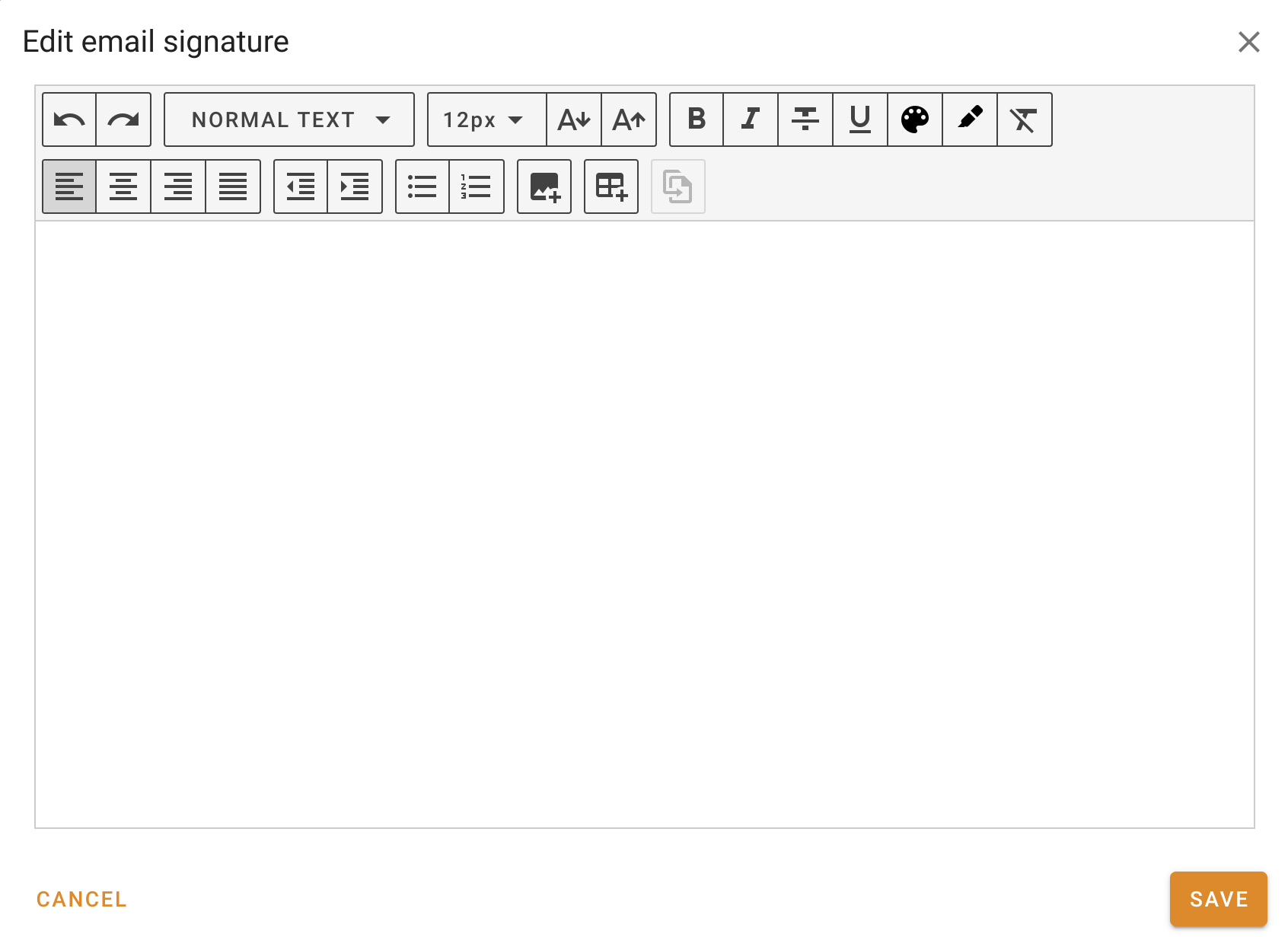 |
Job form
| Setting | Notes |
|---|---|
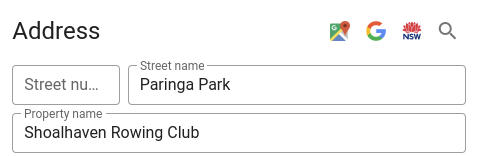
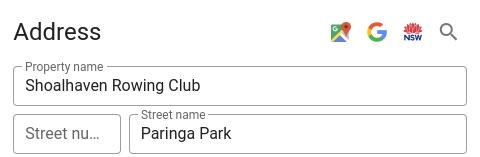
| Show property name as first field on address form | If this switch is turned on, the system will show the property name. See the table below for the comparison. |
| Turned off | Turned on |
|---|---|
 |  |