

Property search results
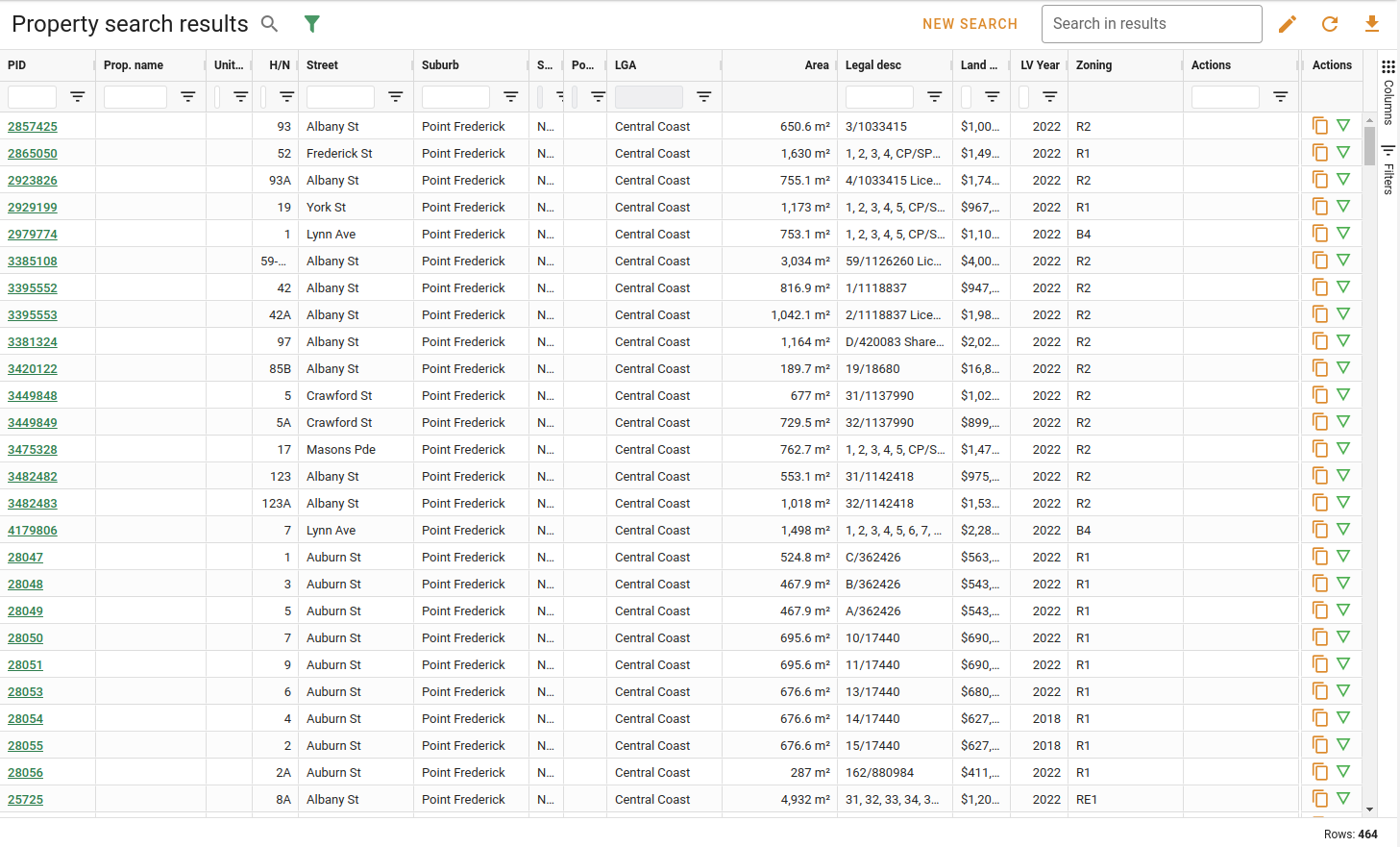
The search results page is where you can see all the properties that have matched your search criteria.
Each property is shown as a row in the table. You can view individual properties by clicking on rows, if you want to open the property as a full page in a new browser tab, click the Open in new tab button at the end of the row.
You can change or see information about the search using the buttons in the title bar across the top of the results.
Interacting with results
The search results page has three important sections - The Title bar, the Results table, and the Pagination controls.
Title bar
The title bar includes several buttons that you can use to navigate, change, filter and export search results.

You can click on the Search button next to the page title to view the criteria for your current search.
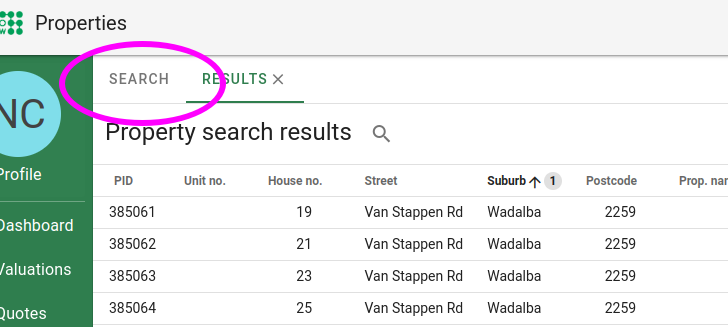
To begin a new search you can click the Search again button, this will take you back to the last tab you viewed on the search page. Here you can begin a new search or view your recent/favourite searches.
If you're viewing the search results as one of several tabs within the one page, you can just click on the Search tab instead.
If you want to filter the search results further you can use the Search in results text input field. Only rows containing the text that matches your search will then be shown. To reset the filter, click the Clear button.
Click on the Edit button to edit your search criteria as a full search.
Click on the Refresh button to reload your search results.
Finally, you can click on the Download button to export your search results as a CSV or PDF.
Results table
The results table displays the properties that matched your search criteria.
You can click any row to open the property in a popup.
The table has the following columns.
| Field | Description |
|---|---|
| PID | The unique Property ID, determined by the state government. |
| Unit no. | The Unit number of the property, where applicable. |
| House no. | The House number of the property. |
| Street | The name of the street the property is located on, including the abbreviated street type. |
| Suburb | The Suburb in which the property is located. |
| Postcode | The Postcode in which the property is located. |
| Prop. name | The property/building name. |
| LGA | The Local Government Area / District in which the property is located. |
| Area | The total area of the property displayed as either m2 or ha. |
| Prop. type | The type of property (NORMAL or UNDERSP) as recorded in the Register of Land Values. |
| Prop. desc | The formatted lot/section/plan details (Legal description) of the property. |
| Prop. notes | Any notes attached to the property. |
| Land value | The most recent recorded land value for the property. |
| LV Year | The year that Land value was recorded. |
| Zone code | The Zoning code the property is listed under. |
| Actions | Click the Open in new tab button to open the selected property in a new browser tab. |
Sorting search results
You can sort your search results by clicking on the heading of the column you want to search by. Each column can be sorted in ascending or descending
 order. When the table is being sorted by a column, there will be an arrow in the column header that indicates the sort direction. To stop sorting on a column, click the header until the arrow and number next to it disappears.
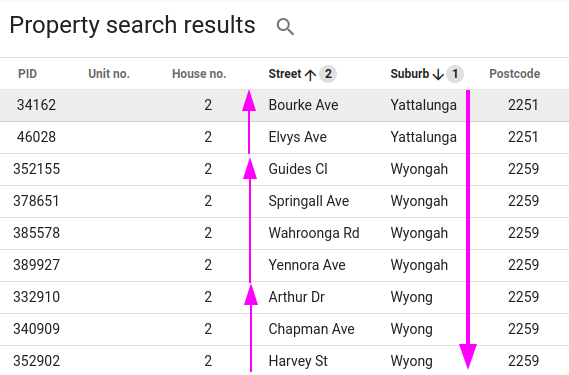
The table can be sorted by multiple columns at a time, e.g. by Suburb, then Street name. There will be a number next to the column headers you're sorting by that tells you the sort order. To change the sort order, clear the table sorting, then sort by each column in the order that you want.
In the image below, results are sorted first by descending Suburb , then by ascending Street name
 .
.
Pagination
Search results are broken up into pages. You can navigate these pages, and set how many results are displayed at a time using the pagination tools at the bottom right of the page.

With the pagination controls you can:
- Use the Rows per page dropdown to select the number of rows that are displayed in a single page. If you set this to a higher number, you might have to scroll to see all the items on the page.
- See which rows are displayed on your current page, and how many rows there are in the whole result set
- Go back to the first page

- Go back to the previous page

- Go to the next page

- Go to the last page
