

Introduction to attachments
Files can be attached in bulk to sales, projects, and valuations. These all use the same attachments interface. Using this interface, you can upload, download, preview, and even edit files. The attachments interface has two modes - the Flat view and the Folder view.
Folder vs. Flat view
You can switch between folder view and flat view using the Switch view button.
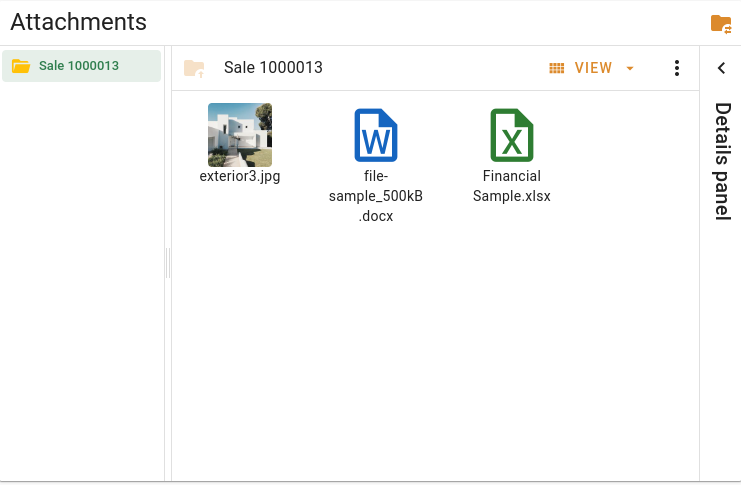
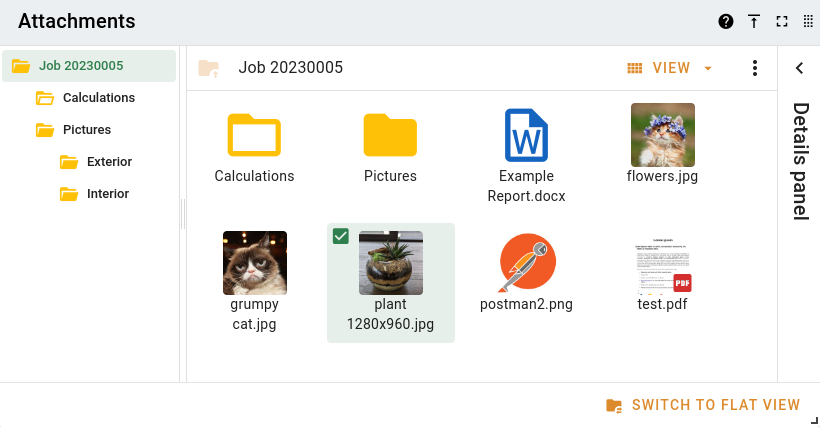
This button is located at the top-right for sales and company files as an icon, and at the bottom-right of the panel as a text button in panel layouts, as seen below.
Sale attachments panel
Valuation attachments panel
The Flat view allows you to see all the attachments at once, regardless of folder structure. Folders aren't shown in this view. Here you can interact with files one at a time using the buttons on the file cards, and you can reorder the attachments via drag 'n' drop to see more important ones first.
The Folder view allows you to interact with your files like you would in a regular file system. Here, you can group related files into folders. You can interact with one or many files at a time. Select multiple files by shift or control clicking, and interact with files by right-clicking them. This is the best view for handling files in bulk.