

Tasks and workflows
Workflows are a collection of tasks that can be added to a job to help you process it. Task represent steps in the lifecycle of the job that need to be completed before the job is finished.
Workflow panel
After you've saved a job for the first time, the workflow panel will appear on the right side of the screen. The workflow panel can be minimised or maximised using the Hide and Expand
 buttons.
When expanded, the panel width can be adjusted by dragging the border between the workflow panel and the valuation form horizontally.
Adding workflows
Before you add any tasks, your workflow panel will look like this:
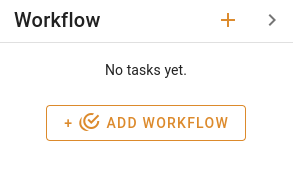
Click the + Add workflow button to bring up the Add task popup. When accessed through this button, the Add task popup will automatically filter for the task types that will add a workflow to the job.
Workflows are added to the job through the special Start workflow task type.
Select the task that starts the desired workflow and click the Add task button.
This task will execute automatically, and will add all the tasks in the workflow to your job.
Adding regular tasks
You can also add any other task to the job. Click the Add task button in the workflow panel heading to show the popup.
Add task popup
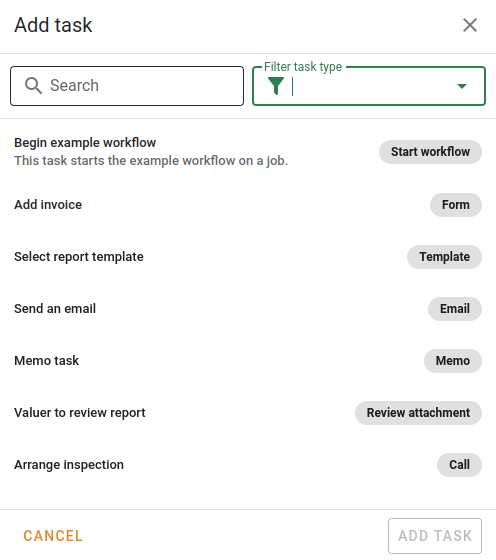
After the popup shows, you can  Search for a task by typing in the search box, or Filter by task type
 using the dropdown.
When you find the task you want to add, select it and click Add task.
Understanding tasks
Tasks display differently based on their status, who they're assigned to, and whether or not they're required for the job to be completed.
| State | Description | Example |
|---|---|---|
| To do | This is the base task status. No action is required yet, and it hasn't been completed or skipped. | |
Completed | Completed tasks have a green background and a tick next to them. Completed tasks are classed as finished and can't be edited. |  |
Skipped | Skipped tasks have a grey background and a skip icon next to them. Skipped tasks are classed as finished and can't be edited. |  |
Cancelled | Cancelled tasks have a grey background and a cancelled icon next to them. Cancelled tasks are classed as finished and can't be edited. |  |
| Overdue | These tasks have a red background. The number of overdue tasks will be visible on the minimised task panel. |  |
| Due soon | These tasks have a yellow background. |  |
| Unfinished tasks assigned to you | Slightly raised and have a shadow |  |
| Mandatory | These tasks are outlined. | 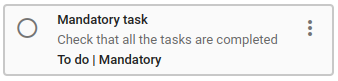 |
While a task can only have one status (Completed, Skipped, Due soon, or To do), it can be any of these as well as mandatory.
Editing tasks
Unfinished tasks can be edited at any time to add notes or change the responsible user. Click the body of a task to open the Edit task popup.
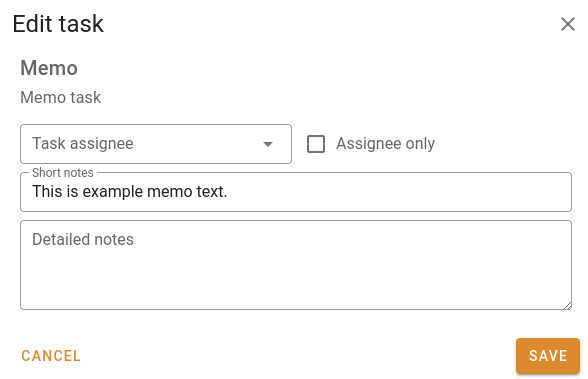
Whatever you enter in the short notes field will always be shown on the task underneath the title. The detailed notes are only visible after clicking into the task.
Completing tasks.
Unfinished tasks have a Do task button on the right-hand side that you can click to open the Perform task popup.
The Perform task popup varies in complexity with the type of task. Some will require data entry, some will require interaction, and some you can just mark as done. Once you've performed the task, it will be marked as Completed.
| Task type | Purpose | Completion |
|---|---|---|
| Start workflow | Begins a workflow an automatically adds tasks to the job | Automatically completed as soon as it's added. |
| Triggers th sending of an email, generally a specific template. | Compose an email or check the pre-filled data, select any attachments you want to add, and then send. The task will be marked as complete as part of sending the email. | |
| Memo | Leave a note on the job, or specify a task to be done outside the system. | Can simply be marked as done. |
| Review attachment | Approve a document on the job, typically the report. | View the report, then unlock if necessary. Once the report has been viewed and unlocked, you'll be able to complete the task. |
| Template | Upload a template to the job (either a report or a job attachment) | Either select one of your company's pre-existing templates, or manually upload a file. |
| Call | Signifies a call that needs to be made to a contact on the job. | Can simply be marked as done. |
| Form | Signifies a special or automatically generated attachment to be manually added to the job. | Mark as done once you've added the file. |
| None | Any task that doesn't fit into another category, often representing some external action. | Can simply be marked as done. |
| Stop all tasks | Cancels every unfinished task on the job. Only use this when cancelling a job. | Automatically done as soon as it's added. |
Cancelling and skipping tasks
If a task is not to be completed on a job, you can mark it as Cancelled or Skipped through the task Action menu at the right of the task.