

Accepting, rejecting & cancelling
Once a response has been received from the client, you can finalise the quote by accepting, rejecting, or cancelling it. Accept and Reject are only available once the quote has been sent (status: Awaiting reply). Cancellation is available at any in-progress stage.
See the Quote form reference for details on which statuses allow each action.
Accepting a quote
Accepting a quote marks it as accepted and optionally links it to a valuation job.
To accept a quote:
- Open the quote (double-click from the table, or right-click → Accept quote).
- Click the Accept button in the dialog footer, or right-click the row and choose Accept quote.
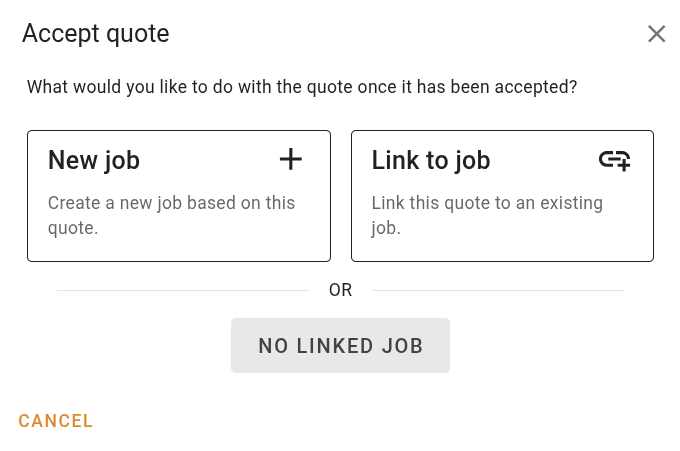
The acceptance wizard asks what you would like to do with the quote:
New job
Choose New job to create a new valuation job based on this quote. Proceed through the confirmation step and click Accept quote to confirm. A job will be created automatically and linked to the quote.
After accepting, a notification will appear at the bottom of the screen with an Open job link to take you directly to the new valuation.
Link to job
Choose Link to job to link the quote to an existing valuation job.
- Enter the job reference number in the search field.
- Click Search.
- Review the job details shown.
- Click Link quote to confirm.
No linked job
Choose No linked job to accept the quote without creating or linking a job. Use this when the job already exists and will be linked later, or when no job is needed.
You can link or unlink a job from an accepted quote at any time using the Link to a job button or the unlink icon in the address column of the quote form.
Be careful when choosing this option because completed quotes are not shown by default, so this quote will be harder to find in the future.
You'll have to enable the "Show completed" option in the quotes table view to find this quote again.
Reject vs. cancel
Both actions close out a quote without accepting it, but they mean different things:
- Reject — the client has responded and turned down the quote. Use this when you have received a "no" from the client.
- Cancel — your firm is withdrawing or abandoning the quote. Use this when the client hasn't responded, the opportunity has lapsed, or you have decided not to proceed for an internal reason.
Rejecting a quote
Rejecting a quote marks it as rejected and records the reason.
- Click Reject in the dialog footer, or right-click the row and choose Reject quote.
- Optionally select or type a rejection reason from the dropdown.
- Click Reject to confirm.
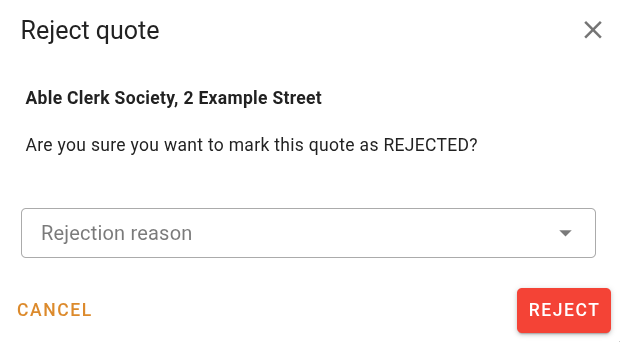
Rejection reasons are configured in Settings → Lists. You can also type a custom reason that isn't in the list.
Cancelling a quote
Cancelling a quote marks it as cancelled. Use this when your firm decides not to proceed — for example, when the client hasn't responded and the opportunity has lapsed.
- Click Cancel quote in the dialog footer, or right-click the row and choose Cancel quote.
- Optionally select or type a cancellation reason from the dropdown.
- Click Confirm to proceed.
If you try to delete a quote that could be cancelled instead, VOW will suggest cancelling as an alternative. Cancellation preserves the quote record; deletion removes it permanently.
Next steps
- Quotes overview — understand the full quote lifecycle
- Quote form reference — status lifecycle and action availability