

Working with layouts
A layout is the term that we use to refer to the visual organisation of a form. A layout can have multiple tabs to group different views. Each tab can have multiple panels. Each panel contains related fields or interactive components that can be used to update the item.
Layouts can be customised to suit your needs for specific use-cases.
Layout tabs
Tabs are used to create screens of related panels in a layout. You can have as many tabs as you like in a layout.

Working with tabs
You have full control over the tabs in a layout - you can create new tabs, rename them, reorder and remove them.
Adding a tab
To add a tab:
- Press the New tab
 button.
 - Enter the tab name, and click Save
- By default, a layout will have all possible panels showing. Select the panels you want using the panel dropdown menu.
Managing existing tabs
You can reorder, rename and delete existing tabs.
To move a tab, just drag 'n' drop it where you want.
To rename or delete a tab, click the Menu button on the right-hand side of a tab and then select the option you want.
Layout panels
Each tab contains a number of panels arranged in a grid. You have full control over which panels appear, and how they're arranged.
Working with panels
The layout of panels within a tab is highly customisable. You have control over which panels are showing, as well as their size and location.
Panel selection
Most of the time, you'll only want to have a few panels per tab - this helps you quickly find what you need. You can pick and choose which panels are showing in the current tab using the panels menu, shown below.
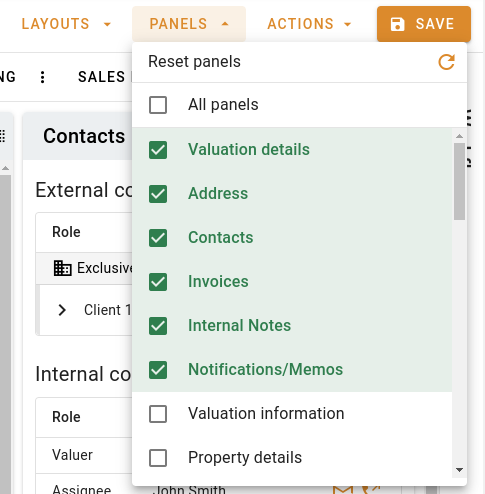
Tick or un-tick a panel to show or hide it in the current view.
You can use the Reset panels action to reset the panels in the current tab to the default arrangement.
Panel actions
Panel action buttons are available in the top right-hand corner of the panel - see the image below. You can
Panels can be moved around by dragging from the drag handle and sent to the top of the page using the send to top
 button.
You can also resize panels using the resize handle in the bottom right-hand corner.
Move and resize handles are visible on the panel below
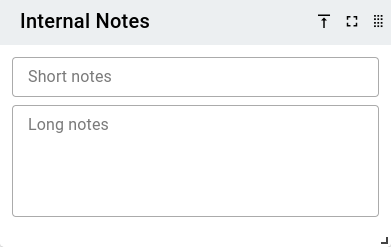
The maximise button allows you to temporarily use the panel in a full-screen popup.
Working with layouts
Layout management
You can create multiple layouts, and switch between them at will using the layout menu:
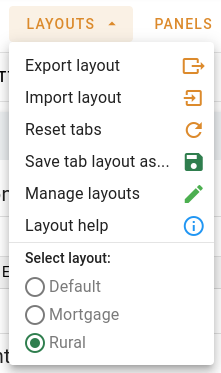
You can activate a saved layout by clicking on the layout name at the bottom of the layouts menu.
You can create a new layout with your current arrangement by clicking Save tab layout as...
To reorder or rename a layout, click Manage layouts.
You cannot reorder, rename or delete the Default layout.
Sharing layouts
You can share layouts with other users using the Export layout action in the layouts menu. This will download the layout as a JSON file that you can share with your team.
You can upload a layout that someone has shared with you using the Import layout action.