

Finding quotes
All quotes are displayed in the quotes table, accessible from the Quotes navigation item.
See the Quotes table reference for a full description of every column and filter option.
The quotes table
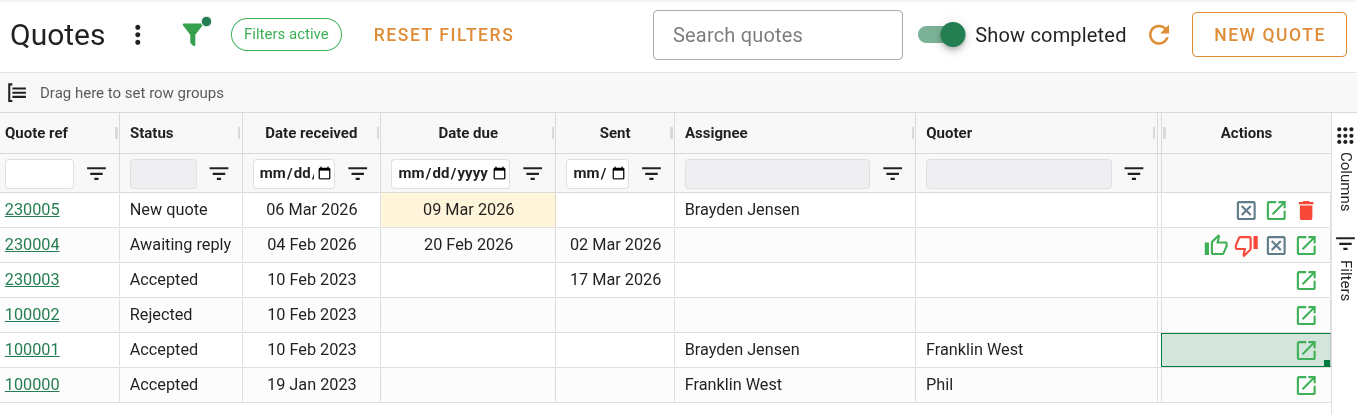
The table shows your in-progress quotes by default — accepted, rejected, and cancelled quotes are hidden unless you turn on Show completed.
Each row represents a single quote. You can:
- Double-click a row to open the quote for editing.
- Right-click a row to show the context menu with available actions.
Searching
Use the Search quotes field in the top toolbar to filter the table by any text that appears in the visible columns. The filter is applied as you type.
Click the × button in the search field to clear it.
Showing completed quotes
By default, accepted, rejected, and cancelled quotes are hidden. To include them:
Toggle the Show completed switch in the toolbar.
When Show completed is on, two additional columns appear: Rejection/Cancellation reason and Linked job.
Using column filters
Each column has a filter built into its header. Click the filter icon next to a column name to open its filter panel.
- Text columns use a text search filter.
- Status and user columns use a checkbox list so you can select one or more values.
When Show completed is off, the Status column filter only shows in-progress statuses. Turn on Show completed first if you want to filter by Accepted, Rejected, or Cancelled.
Grouping rows
You can group the table by a column by right-clicking the column header and choosing Group by this column. Columns that support grouping include Status, Assignee, Quoter, Valuer, and Additional valuers.
To remove grouping, right-click the grouped column header and choose Remove group.
Opening the filter panel
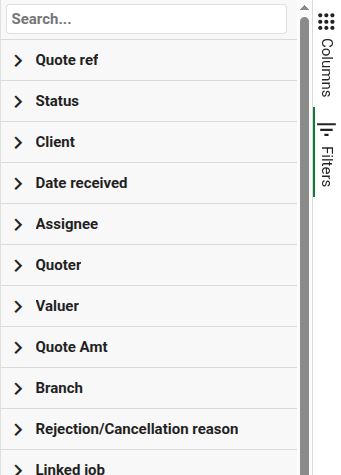
Click the filter icon button near the top-left toolbar to open the AG Grid side panel with all column filters listed.
Click Reset filters in the toolbar (shown when any filter is active) to clear all active filters and reset the table to its default view.
Next steps
- Editing a quote — open a quote and make changes
- Accepting, rejecting & cancelling — finalise a quote