

Editing a quote
The quote form is where you view and edit all details of a quote. It is made up of three main columns — Quote details, Contacts, and Address — plus a collapsible side panel.
See the Quote form reference for a full description of every field.
Opening a quote
To open a quote for editing:
- Double-click any row in the quotes table to open it as a dialog.
- Right-click a row and choose Edit quote from the context menu.
- Click the arrow icon in the dialog header to open the quote as a full page.
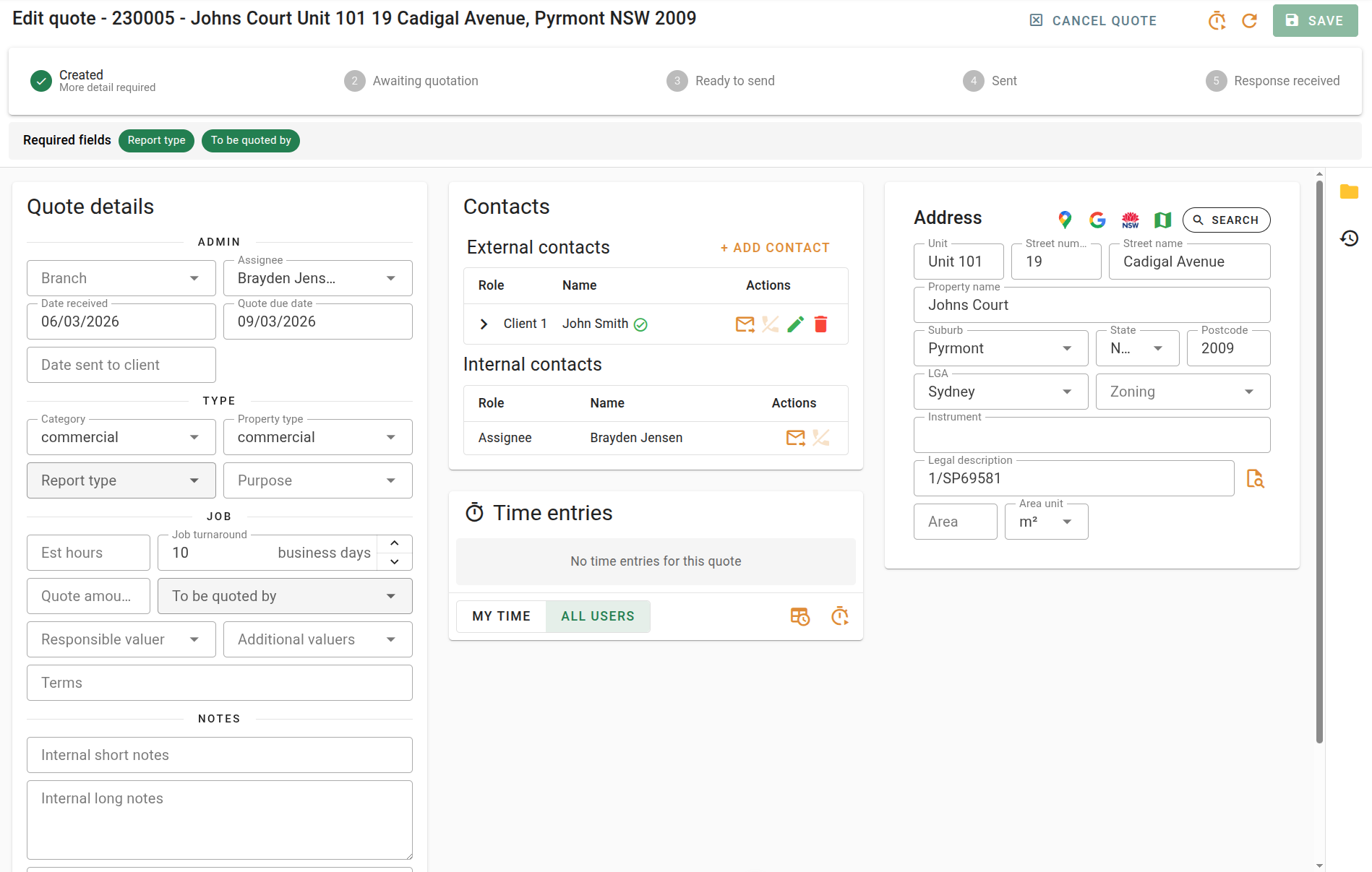
Required fields banner
When a quote is in New status, a banner appears at the top of the form listing any fields still needed for the quote to advance automatically to Awaiting quotation. Each missing field is shown as a clickable chip — click it to jump directly to that field in the form.
The required fields are: Category, Report type, To be quoted by, Client contact, and a complete Address (LGA, suburb, state, and street name or property name).
Once all required fields are filled and the quote is saved, the banner disappears and the quote moves to Awaiting quotation automatically.
Status stepper
At the top of the form, a status stepper shows the quote's progress through the workflow:
Created → Awaiting quotation → Ready to send → Sent → Response
The current step is highlighted. If the quote has been rejected or cancelled, an alert banner is shown below the stepper indicating the outcome and reason.
Quote details column
The left column contains the core details of the quote:
- Branch, Assignee, Date received, Quote due date, Date sent to client
- Category, Property type, Report type, Purpose
- Est hours, Job turnaround, Responsible valuer, Additional valuers
- Quote amount (ex. GST), Quoted by/To be quoted by
- Terms, Internal short notes, Internal long notes
- Comments (included in the quote document)
Contacts column
The middle column shows client contacts linked to the quote. You can:
- Add new contacts using the Add contact button.
- Edit a contact's details, role, or referral type.
- Remove a contact from the quote.
Address column
The right column contains the property address. If the quote has been accepted, a card also appears showing the linked valuation job (or a button to link one).
Use the address lookup button to search for and auto-fill an address.
Side panel
The side panel on the right edge of the form provides access to:
- Attachments — upload, view, and manage files attached to this quote.
- Events — a full audit log of every change made to the quote.
Click the folder or history icon on the minimised panel edge to expand it. Click the × button to collapse it again.
Sending a quote to the client
When a quote reaches Ready to send status, a Send to client button appears in the form footer. Clicking it confirms that the quote has been sent and moves the quote to Awaiting reply. The Date sent to client field is set automatically.
You can also manually set the Date sent to client field in the quote details column — this has the same effect.
Saving changes
Click Save quote in the dialog footer (or the save button on the full page) to save your changes.
If you try to close the quote form with unsaved changes, a confirmation dialog will appear. You can choose to Save, Discard, or Keep editing.
Next steps
- Accepting, rejecting & cancelling — finalise the quote
- Quote form reference — full field reference