Flat view
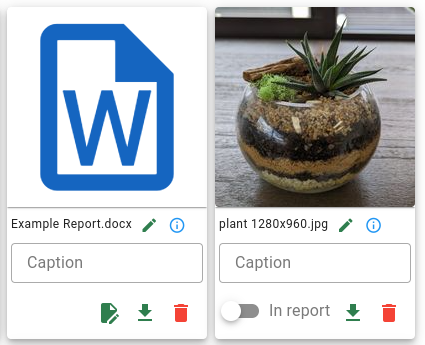
The flat view gets its name from the fact that all the files are visible at once - there is no folder hierarchy in this view. Files are shown in a grid layout, and all interaction with the files is through clicking buttons.
Uploading files
Files are uploaded to the flat view through the dropzone, shown below. Either drag and drop a selection of files onto this area from your file browser, or click the dropzone and then select your files manually.

Once the file upload has started, you'll see a popup letting you know the progress of your upload. Don't close this popup or navigate away until the upload is complete, or you might lose some files.
If you upload a folder onto the flat view, all the files in that folder will be uploaded, but the folder itself (and any nested folders) won't be added to the job. If you want to keep your folder structure, upload your files via the Folder view.
Once the upload is complete, you'll be able to see if any files failed, and why. The below example shows a file upload that failed because it was too large.
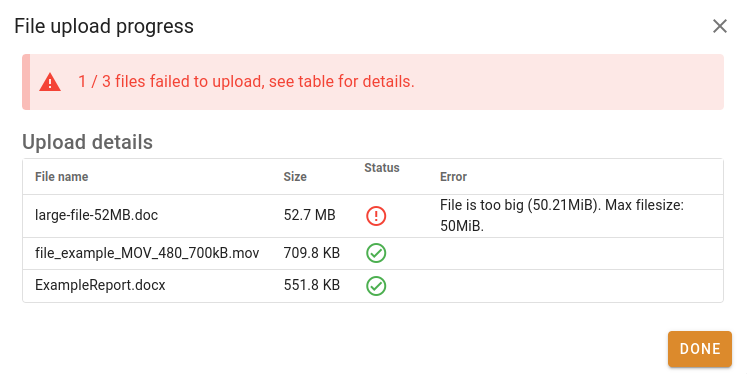
50 MB is the largest file size you can upload.
Interacting with files
In the flat view, you interact with files by clicking buttons on the attachments.
You can:
- Drag files around to reorder them.
- Rename the file using the Edit
 button next to the file name.
 - Click the Edit file
 button to edit the file using the Helper.
 - Click the thumbnail to open the document.
- If you open a file that can't be viewed in the browser, you'll have the option to download it or edit it using the Helper (when applicable).
- Download
 a copy of the file.
 - Delete
 the file.
 - Mark an image for inclusion on a Proforma report with the In report toggle (valuations only).
- Edit the caption of an image to be shown in the Proforma report.